Audit Log
Audit Logs in COHO help you track what’s been happening in your organisation, the property or a room/tenancy.
The Audit Logs in COHO can be found on the main organisation page, property pages and room pages.
Audit Log Overview
To understand how Audit Logs work, we must understand where the Audit Log pulls its notes from.
On various panels within COHO you are able to add notes on the Workflow / History / Conversation side section. COHO also automatically adds items when something is done, added or changed in the system i.e., a rent payment is logged. These side note sections can be found when looking at various panels in COHO such as; Actions, Onboarding, Tenant Find, Rent Collection, Maintenance and when adding compliance documents.
Here is an example of the side notes section as it appears on the Actions panel:
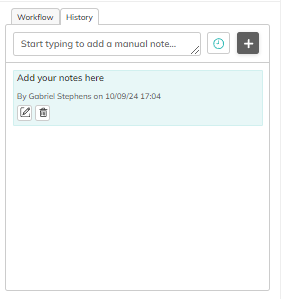
Here we can manually add notes to the history tab. They are date and time stamped with the user's name that added the note. You will also notice that when an action is completed, it will also log a record of this for you. For example, when a rent payment is logged, a tenancy agreement is signed etc.
Organisation Audit Log
Here you can add/view all notes/history across the entire organisation.
Category: Here you can use the drop down menu to specify a category of notes/history.
Team member: Here you can filter by team member to see the notes created by the team member.
Date range: Here you can choose a date range to look at items within a specific time period.
Start typing: Here you can add manual notes.
Property Audit Log
Here you can add/view all notes/history across the property only.
Category: Here you can use the drop down menu to specify a category of notes/history.
Team member: Here you can filter by team member to see the notes created by the team member.
Date range: Here you can choose a date range to look at items within a specific time period.
Start typing: Here you can add manual notes.
Room/Tenancy Audit Log
Here you can add/view all notes/history for the room or tenancy.
Category: Here you can use the drop down menu to specify a category of notes/history.
Team member: Here you can filter by team member to see the notes created by the team member.
Date range: Here you can choose a date range to look at items within a specific time period.
Start typing: Here you can add manual notes.